Take Control of Your Buffers With Ibuffer-Mode
Last time we met, I discussed how Emacs provides tab-bar-mode for tabbed navigation, and how it is a useful organizational tool for your Emacs workflow. Exciting stuff! And today I will be continuing the excitement by discussing one of my annoyances with Emacs, and how to handle it.
Buffer Bloat
The buffer is a basic data structure in Emacs. As a Text User Interface (TUI) platform, everything you interact with is stored as text in a buffer, whether that is code you are developing, a blog post you are writing, or the input to and output from an interactive shell.
As your Emacs session goes on, as you visit files and run programs and do all the things you can do with it, buffers start piling up. They seem to come from nowhere, and before you know it, you are finding them behind the couch, under your bed, you trip over them in the hall. And then when you need to switch back to a buffer that you last looked at the day before, you have to sift through that pile to find the one you want.
A quick C-x C-b brings up Emacs's default buffer manager,
buffer-menu-mode. It is a fairly straightforward mode, which lists all
open buffers, allows you to jump to any particular one, to save or
delete a group of buffer, and other basic buffer-related tasks. Good
enough when getting started with Emacs.
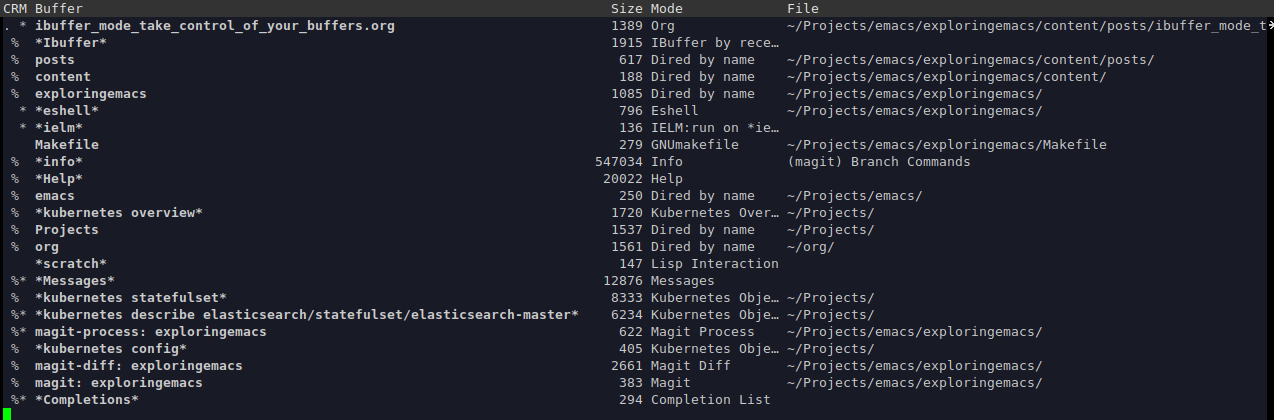
But once you've been working in Emacs long enough and your open buffers start piling up, buffer-menu-mode no longer cuts it. The more clothes you have, the more you are in need of a way to organize them, to put them away into drawers, to have a system that makes sense out of the chaos. And the same is true for your buffers.
Ibuffer-Mode
Fortunately, Emacs provides a better alternative, called ibuffer-mode,
included in GNU Emacs as of version 22. To give it a try, simply run
M-x ibuffer to open a new buffer in ibuffer-mode. It shares a number
of similarities with dired mode, and therefore should be easy to
pick up and start performing simple operations on buffers.
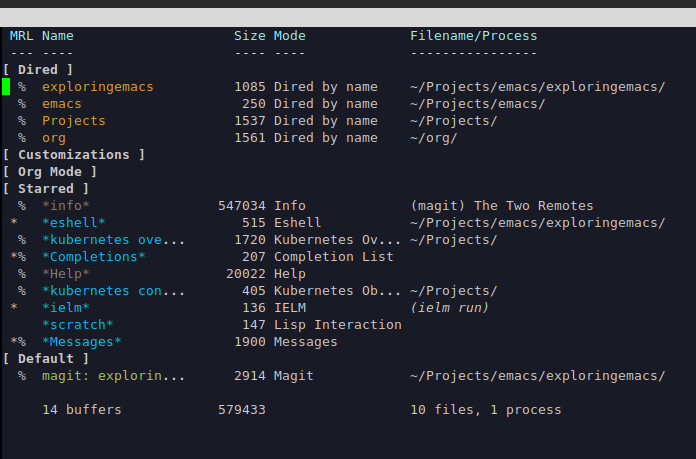
In the above image you will notice that buffers are grouped into sets under a label, a feature we will discuss later in this post.
Like the default buffer-menu-mode, ibuffer-mode provides a visualization of the current set of buffers and a set of operations you can perform on them. These include operations on individual buffers and sets of selected, or "marked", buffers, as well as operations on the content of a single or set of buffers. The individual buffer commands include removing them, searching their contents, sending their contents to a shell command, and other useful operations. The buffer group operations are where it really becomes a powerful tool. These include:
- Marking
- Filtering
- Grouping
- Sorting
Marking
Marking is a simple concept that translates from other commonly used
Emacs modes such as dired. It provides a way to perform operations
on multiple objects, in this case buffers, by selecting them
individually and then applying an operation to the currently marked
set.
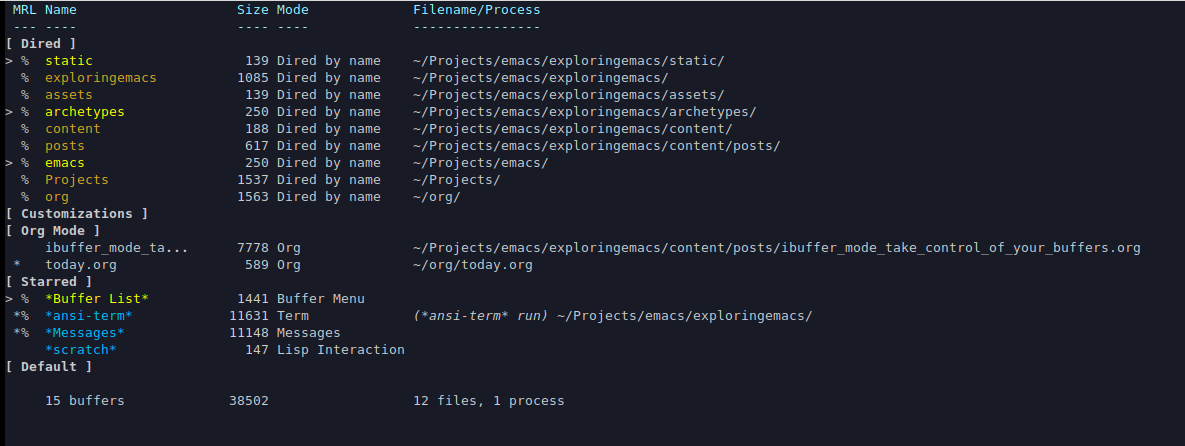
Want to delete a set of buffers all at once? Mark them for deletion by
moving point to each and hitting d, then hit x to execute. Want to
perform an incremental search through multiple buffers at one time?
Mark each one then hit M-s a C-s and start typing your search
term. There are also commands to do search and replace operations, or
to evaluate a lisp form in each. And as always, a simple C-h m
brings up the mode's help buffer so you can get all the details.
Filtering
Ibuffer-mode has powerful and flexible filtering capabilities, allowing you to narrow down the set of displayed buffers with myriad options for filtering criteria.
Filtering commands are all prefixed
with a slash: /, followed by a single character which determines the
kind of filter to apply. You can filter by criteria such as buffer
name, major or minor mode, directory, modified status, file extension,
and more.
Going beyond the application of a simple filter, things get interesting, because filters can be combined into filter pipelines in which they are applied one after the other to get the desired result, and pipelines can be manipulated to easily switch between different views of your set of open buffers.
Filtering Example
As an example, let's say you want to filter your buffer list down to
just the "starred" buffers, the ones that are by convention surrounded
by the asterisk symbol to indicate that they were created by Emacs
itself. Hit / * to apply that filter:

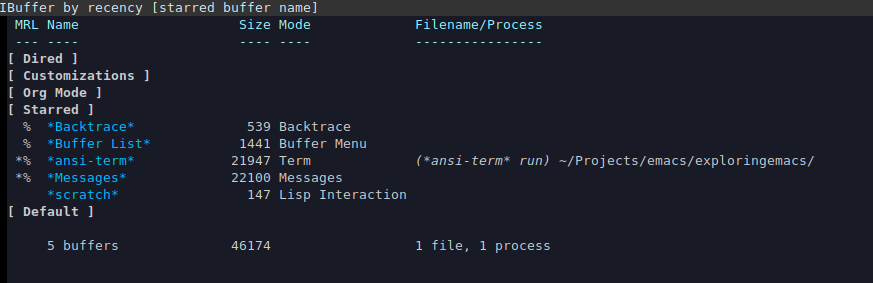
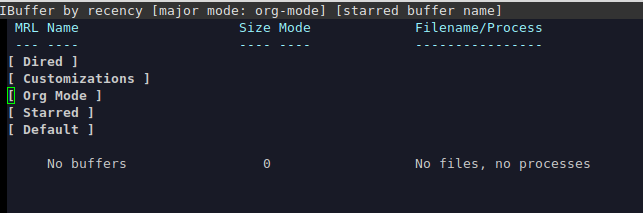
Then you realize you'd like to view all of your Org Mode buffers at
the same time. Add that filter with / RET org-mode. Now the buffer list
is empty since there are no filters that pass both tests:

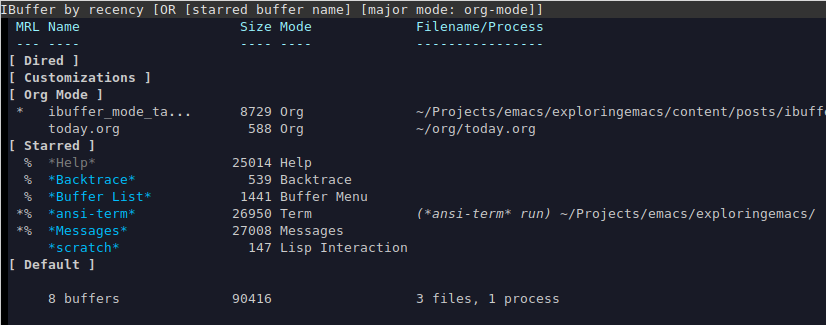
What you want is to apply both filters separately and combine the
results, using a logical "OR" so that you see those buffers that are
either starred or org-mode. And that is as
easy as hitting / | after having previously inserted both into the pipeline.

AND'ing filters together is also possible with / &.
That is a simple example of what is possible in terms of applying filters to your buffer list, and of course there is plenty more to discover for the curious.
Before we move on to other features of ibuffer-mode, we should also
point out that if you have a filter or set of filters that you use
often or don't want to have to recreate each time you need them,
ibuffer-mode allows you to save named filters for later retrieval. Hit
/ s to bring up the prompt to save your current set of filters under
a user-chosen name, and then / r to find and re-apply it.
Grouping
Earlier I pointed out the groups that buffers are sorted into in the screenshots. This is accomplished with what ibuffer-mode refers to as "filter groups", a somewhat confusing term since this is about grouping buffers by various criteria rather than filtering them out, but it seems that the naming is based on the fact that it uses the same predicates for grouping buffers as it does for filtering them.
In any case, just like tabs provide a way to group your windows into
related sets, filter groups in ibuffer-mode allow you to place your
set of open buffers into labeled groups. These are the drawers that
allow you to bring order to the pile of accumulated buffers. You
can jump between groups with TAB and expand and collapse them by
hitting RET with point on a group label. Also similar to filters,
groups can be named and saved for applying later with / g and / R.
Sorting
Lastly there is sorting buffers, which we will not spend too much time
with other than to point out that the different sorting options are
applied by hitting s followed by a key to apply a specific sorting
scheme. For example, hit s a to sort lexicographically. You can flip
between the various sorting options by hitting , (comma)
repeatedly.
Runner-Up Buffer Modes
In my exploration of buffer management in Emacs, I've found that there
are even a few more options than the basic buffer-menu and
ibuffer-modes I've discussed here. You can add to that list
buffer-selection-menu and electric-buffer-menu, which can be be
accessed with M-x bs-show and M-x electric-buffer-list,
respectively. Both of these sit somewhere between buffer-menu and
ibuffer modes in terms of what they offer the Emacs user, and so I
don't think there is any reason to go into them here, but mention them
just to complete the picture.
Conclusion
There you have it, another way to make your Emacs experience better. Since you are always working with buffers in Emacs, a better buffer handler is a big help.
Below is some elisp code to get you started with ibuffer- mode, taken mostly right from the Emacs Wiki:
  ; Use ibuffer-mode as the default buffer handler
  (global-set-key (kbd "C-x C-b") 'ibuffer)

  ; Add a saved filter group to apply to your Ibuffer menu
  (setq ibuffer-saved-filter-groups
        '(("Home"
       	  ("Dired" (mode . dired-mode))
    	  ("Customizations" (mode . custom-mode))
    	  ("Org Mode" (or (filename . ".org") (mode . org-mode)))
    	  ("Starred" (starred-name)))))

  ; Apply your saved filter group automatically when opening
  ; ibuffer-mode
  (add-hook 'ibuffer-mode-hook
    	  (lambda ()
    	    (ibuffer-switch-to-saved-filter-groups "Home")))
References
- Emacs Wiki entry for IbufferMode
- Online documentation